
Guide
WARDOGS HOTAS setup: where the toggle is, which axis drives which control, Thrustmaster sticks, and the fixes when the collective will not move
WARDOGS HOTAS support is real: the game reads flight sticks and throttles. Turn on Enable HOTAS under Settings > Gamepad > HOTAS, put pitch and roll on the stick, collective on a throttle axis and yaw on the twist grip or pedals, then test in the Firing Range. If you fly with a mouse, leave HOTAS off, because the player-written Steam FAQ warns it can stop mouse-and-keyboard flight input. BULKHEAD has not published a default stick profile.
This page is the stick-and-throttle companion to our helicopter controls guide, which covers mouse-and-keyboard flight. Everything here comes from four places, each named where it is used: Thrustmaster's WARDOGS Helicopter Guide (10 September 2026, content credited to BULKHEAD); the player-written 'Keybind and Helicopter Controls FAQ' on the Steam forum (Grundy, 3 September 2026) and its replies; GamesFuze's 'How to Setup HOTAS in WARDOGS' (Haider, updated 12 September 2026), the only published walkthrough that lists the HOTAS tab setting by setting; and BULKHEAD's own changelogs up to the Season 03 notes of 11 November 2026. Where none of them says something, we say that too.
Where the HOTAS settings live, in five steps
GamesFuze's walkthrough gives the path and the order. Its author notes that BULKHEAD has not documented any of this officially, so check the labels against your own menu. The steps below are theirs, in the order they give them:
- Plug the stick and throttle in before launching, and confirm Windows sees them. GamesFuze says to check the operating system's device list first.
- Open Settings > Gamepad > HOTAS and switch on 'Enable HOTAS'. Per GamesFuze, the game then hands control to the stick when you board a helicopter and gives it back to mouse and keyboard when you get out.
- Open Settings > Controls > Settings and switch on the assist master toggle. GamesFuze calls it 'Flying Assists'; the Steam FAQ calls it 'Flight Assists'. The assists below it only work while it is on.
- Back on the HOTAS tab, click each binding and move the matching axis. Move only that axis while the game listens, or it may pick up the wrong one.
- Take a helicopter in the Firing Range before a live match. GamesFuze, the Steam FAQ and BULKHEAD's own tip ('Practise away from the action', via Thrustmaster) all say the same.
Which axis drives which control
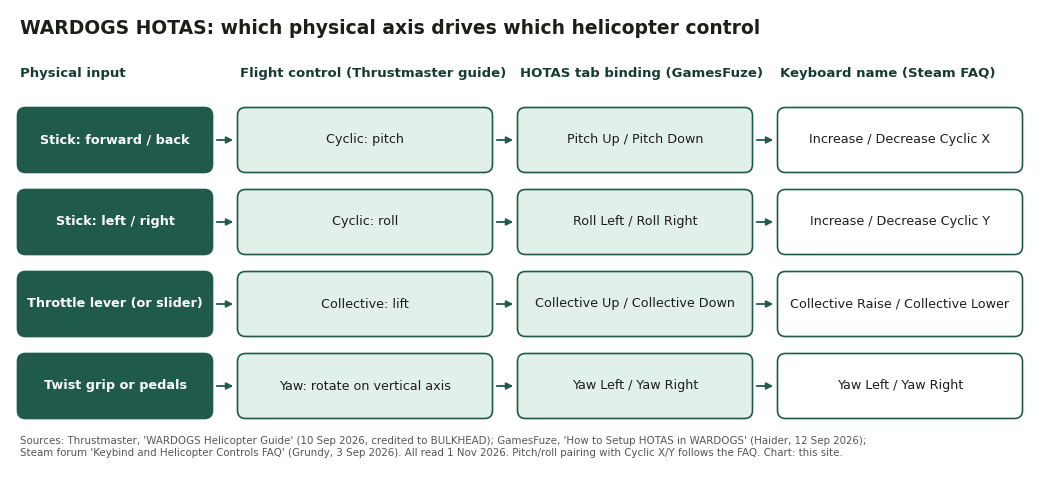
Thrustmaster's guide describes the three flight controls in the studio's words. The cyclic 'controls the helicopter's movement forward, backward and sideways'. The collective 'changes the lift generated by the rotor system' and is what you use to climb, descend and hold altitude. Yaw 'rotates it around its vertical axis'. Its mapping advice: a flight stick for pitch and roll, because they are independent axes; a throttle for 'a progressive physical axis for power or collective-style inputs'; and a twist axis or rudder pedals for yaw.
The chart lines those up with the names you will see. The HOTAS tab names come from GamesFuze. The keyboard names in the Rotary Vehicle keybinding group come from the Steam FAQ. If you also fly with keys, the last column tells you which keyboard binding does the same job. The FAQ pairs Cyclic X with pitch and Cyclic Y with roll.
The HOTAS tab, setting by setting
GamesFuze lists six groups on the tab. The first four share the same five controls: two directional bindings, an invert toggle, a sensitivity value and a deadzone. Collective adds one more, Self-Centering Collective. If a direction is backwards, use that axis's Invert toggle rather than swapping the bindings over, which is GamesFuze's advice.
| Group | Settings | What it is for |
|---|---|---|
| Roll | Roll Left, Roll Right, Invert Roll, Roll Sensitivity, Roll Deadzone | Banking: stick left and right |
| Pitch | Pitch Up, Pitch Down, Invert Pitch, Pitch Sensitivity, Pitch Deadzone | Nose up and down: stick forward and back |
| Yaw | Yaw Left, Yaw Right, Invert Yaw, Yaw Sensitivity, Yaw Deadzone | Pointing the nose: twist grip or pedals |
| Collective | Collective Up, Collective Down, Invert Collective, Collective Sensitivity, Collective Deadzone, Self-Centering Collective | Lift: throttle lever, slider or a second stick |
| Free Look | Camera axis and sensitivity | Looking around without turning the aircraft; GamesFuze suggests a mini-stick or POV hat |
| Actions | Fire, reload, flares and other in-flight functions | GamesFuze says to bind flares and weapons first |
Starting values, and how far to trust them
GamesFuze is the only source that suggests numbers. For roll, pitch, yaw and collective it suggests a sensitivity of 0.75 and a deadzone of 0.02, raised to 0.05 if the hover will not settle, and yaw kept 'slightly below max'. Nobody has published measurements behind those values. They are one writer's starting point, not tested figures and not BULKHEAD's defaults. We print them so you have somewhere to start.
Two points from the same guide explain why the values matter. A deadzone filters out stick drift: a worn or cheap stick that does not return exactly to centre will otherwise feed the helicopter a constant small input. And by GamesFuze's account, the default axis behaviour 'works against new users' until it is tuned. For comparison, the Steam FAQ suggests about 60–65% helicopter pitch and roll sensitivity for mouse fliers, tuned in the Firing Range. That is a different device, and is quoted only as the FAQ's figure.
Flight assists still apply when you use a stick
BULKHEAD's Season 1 changelog (9 September 2026) has the line that matters most here: 'Helicopter input damping now applies to every input device.' Before launch, some smoothing applied only to certain devices. A stick now gets the same damping as a mouse. The same changelog lists a 'Z20 Lakota balance pass, and a fix for sluggish pitch', so beta reports of a slow-pitching Lakota describe a bug that is listed as fixed.
The assists sit under the master toggle in Settings > Controls > Settings. The Steam FAQ names Stability Assist and Auto-Hover Assist, and says switching the master off disables the assists beneath it. GamesFuze names Stability Assist, which it says 'dampens pitch, roll, and yaw responses', and Turn Coordination, which applies automatic yaw correction in turns so the aircraft does not slip sideways. Both guides suggest the same order. Start with the assists on. If the helicopter seems to fight your turns, switch Auto-Hover Assist off first, which is the FAQ's first troubleshooting step for handling. Turn the master off only once you want full manual control.
Can you aim the cyclic with the mouse and use a throttle for collective?
No source documents a mixed setup, so the honest answer is: maybe, test it. Two documented facts point in opposite directions. GamesFuze describes 'Enable HOTAS' as handing helicopter control to the stick on boarding. The Steam FAQ warns players to 'disable HOTAS because it can stop mouse and keyboard flight inputs' if they have no flight stick. Together they suggest the toggle switches the whole aircraft over to the HOTAS device rather than mixing devices axis by axis.
So if you want mouse cyclic plus throttle collective, the way to find out is a short test:
- Keep Rotary Vehicle Mouse Control enabled under Settings > Controls > Settings, with Helicopter Mouse Swipe Left/Right set to Roll and Up/Down set to Pitch (the FAQ's mouse set-up).
- Switch Enable HOTAS on and bind only the throttle to Collective Up and Collective Down.
- Fly in the Firing Range. If the mouse no longer pitches or rolls, the toggle has taken over all flight input, as the FAQ warns. Switch HOTAS off and bind collective to keys instead.
- If both work, you have a hybrid setup. Note your game version, because BULKHEAD has not promised this behaviour and a patch could change it.
There is no auto-throttle; here is what does the job
Players search for a 'wardogs auto throttle'. None of the sources names a setting by that name. Two documented settings come close. Auto-Hover Assist (Steam FAQ) helps hold the aircraft in a hover, which covers much of what people want an auto-throttle for. Self-Centering Collective (GamesFuze) makes the collective return to neutral when you let go of it.
GamesFuze's rule for Self-Centering Collective depends on your hardware. Leave it off for a real throttle lever with detents, because the lever stays where you put it and already holds the power setting. Turn it on for a dual-stick setup, where the left stick springs back to centre, so centre means hold altitude rather than drop. If you get this wrong, a throttle user finds lift jumping back to neutral, and a dual-stick user finds the aircraft sinking whenever the stick is released.
Collective on the space bar: why it breaks Jump
A Bing query that reaches this site reads 'cant change wardogs rotary vehicle collective raise to space bar without getting rid of jump'. The Steam FAQ explains it. WARDOGS 'currently handles some custom bindings as globally exclusive, even when one action is for infantry and another is for a vehicle'. Binding Space to Collective Raise therefore unbinds Jump, even though you never jump while flying. The FAQ adds a second reason to avoid Space: it 'currently has a hidden helicopter weapon function that cannot be removed through the visible keybindings', so in an armed helicopter Space may also fire.
Neither problem is listed as fixed in update 0.1.2 (30 September 2026) or the Season 02 notes (14 October 2026), as read on 1 November 2026, nor in the Season 03 notes (11 November 2026), read 14 November 2026. Until one of them is, the practical fixes are:
- Put the collective on a throttle axis, which makes the keyboard conflict irrelevant.
- Or bind Collective Raise to a key no infantry action uses. Then check Jump, Sprint, Deploy Parachute and Fire, which the FAQ lists as actions to recheck after any helicopter rebind.
- To clear a binding, select it and press Delete. The FAQ notes the key may be labelled Supr or Suppr on some keyboards.
The Thrustmaster hardware the official guide names
Thrustmaster's guide is a hardware maker's article, written with BULKHEAD's content, so it names Thrustmaster products. We list them because players search for them by name, not as a recommendation. Its most complete example is the T.16000M FCS Flight Pack. The T.16000M stick takes pitch and roll and its twist axis gives rudder-style yaw. The TWCS throttle adds the progressive axis for collective. TFRP pedals move yaw to your feet. It also names the T.Flight Hotas X, the wider T.16000M range and the HOTAS Warthog range, including the HOTAS Warthog MKII.
There is no WARDOGS-specific Thrustmaster profile in any source, and the guide itself says control options, mappings and peripheral support 'may vary by game version'. The set-up for each of these is therefore the same as for any stick: the steps at the top of this page. GamesFuze considers pedals the best yaw input, for finer tail-rotor control. That is a judgement, not a measurement.
Dual sticks (HOSAS) and gamepads
Dual-stick set-ups are where reports of problems start. On 4 September 2026 a player, Telrath, replied to the Steam FAQ that the left stick of a HOSAS set-up would not drive the collective, even with Self-Centering Collective on and deadzone and sensitivity adjusted. No reply in the thread and no changelog since mentions a fix. If you hit it, binding collective to a throttle or slider instead is the workaround the other sources imply.
Gamepads go through a separate path from the HOTAS tab. On 11 September a player, Shoresyyyy, reported that on a controller 'RT' only increased lift and could not be rebound to fire the helicopter's weapons. BULKHEAD has since improved the gamepad side. Update 0.1.2 (30 September) added gamepad support on the DEPLOY screen. The Season 02 notes (14 October) list 'Fixed the vehicle spinning on gamepad after closing the tac map' and 'Fixed inconsistent ADS on vehicle weapons when using a controller', adjusted controller sensitivity and aim acceleration, and added an Aim Assist strength slider under Settings > Controller > Advanced. None of those lines mentions HOTAS. Season 3 update (14 Nov 2026): the Season 03 notes (11 November 2026) moved 'Handbrake and Fire (Pilot)' on a gamepad 'from A to B', and again do not mention HOTAS.
When the stick does nothing: a fix order
Work down this list and stop at the first step that fixes it. Steps 1–5 and 7 come from the sources named. Steps 3 and 4 are standard Windows and Steam features, not anything WARDOGS-specific; we label them that way because no WARDOGS source mentions them.
- Confirm 'Enable HOTAS' is on (GamesFuze). If you also fly by mouse, remember the FAQ's warning that it can take over mouse input.
- Rebind the dead axis, moving only that axis while the game listens (GamesFuze).
- General Windows check: open 'Set up USB game controllers' (joy.cpl) and confirm the axis moves there. If it does not, the problem is the device or driver, not the game.
- General Steam check: Steam Input can present a stick as a gamepad. In the game's Steam Properties > Controller you can turn Steam Input off for WARDOGS only, then test again. This is a Steam setting; no WARDOGS source covers it.
- If a direction is reversed, use that axis's Invert toggle. If the aircraft drifts with your hands off, raise that axis's deadzone a little (GamesFuze). If pitch feels inverted on any device, also check Invert Y Axis – Infantry, which the FAQ says can flip helicopter controls.
- If bindings vanish after a restart, check the Keybindings screen again and restart once. The FAQ's last resort: fully close the game, back up GameUserSettings.ini in %LOCALAPPDATA%\Wardogs\Saved\Config\WindowsClient, and only then edit it.
- If the left stick of a dual-stick set-up still will not drive collective, that matches Telrath's unresolved report. Move collective to a throttle or slider.
Questions people ask
- Does WARDOGS support HOTAS?
- Yes. Thrustmaster's helicopter guide, written with BULKHEAD's content (10 September 2026), is built around stick, throttle and pedal set-ups, and GamesFuze documents an 'Enable HOTAS' toggle under Settings > Gamepad > HOTAS. BULKHEAD has not published a default stick profile or a list of tested devices.
- Is there a Thrustmaster profile for WARDOGS?
- None has been published. Thrustmaster's guide names the T.16000M FCS Flight Pack (stick, TWCS throttle, TFRP pedals), the T.Flight Hotas X and the HOTAS Warthog range, and says mappings 'may vary by game version'. Bind them through the in-game HOTAS tab like any other stick.
Sources & further reading
- Thrustmaster — WARDOGS Helicopter Guide: Master Transport, Resupply and Flight (10 Sep 2026, modified 11 Sep; content credited to BULKHEAD), read 1 Nov 2026
- Steam forum — 'WARDOGS Keybind and Helicopter Controls FAQ' (Grundy, 3 Sep 2026; replies by Telrath 4 Sep and Shoresyyyy 11 Sep; player-written), read 1 Nov 2026
- GamesFuze — How to Setup HOTAS in WARDOGS (Haider, updated 12 Sep 2026; third-party, not confirmed by BULKHEAD), read 1 Nov 2026
- BULKHEAD — Pre-Load Live & Season 1 Changelog (Steam, 9 Sep 2026)
- BULKHEAD — WARDOGS | Update 0.1.2 (Minor Patch) (Steam, 30 Sep 2026)
- BULKHEAD — WARDOGS | Season 02 Patch Notes (Steam, 14 Oct 2026), read 1 Nov 2026
- BULKHEAD — WARDOGS | Season 03 Patch Notes (Steam, 11 Nov 2026; read 14 Nov 2026)
Read next
- WARDOGS helicopter controls
WARDOGS helicopter controls from named sources: the Rotary Vehicle bindings (Collective Raise/Lower, Yaw, Cyclic X/Y), the Flight Assists, Stability Assist and Auto-Hover Assist toggles, mouse-swipe and invert settings, the known spacebar and inversion bugs, BULKHEAD's five flying tips, the Season 1 damping and Lakota fixes, helicopter prices, and what transport pays.
- WARDOGS best settings
WARDOGS best settings without guesswork: the official 1080p Low / 1440p Medium / 4K targets, what the Season 1 changelog changed about DLSS Frame Generation, shadow quality clamping and the render target pool, the voice-chat fixes and mic-volume issue, controller and helicopter input notes, and what remains unpublished.
- WARDOGS vehicles
WARDOGS vehicles from the sources: 27 at launch plus four in Season 2 (Wolf-110, Wolf-110 M2, T-72B3, Gepard), with every price, unlock level and destroy reward BULKHEAD has published.
- WARDOGS money
WARDOGS money explained from the sources: the paid actions on the wiki, PCGamesN's six earning methods (zone time, building, taxi, mobile spawn, supply crates, looting), the Hot Zone double-cash rule, every Season 1 price change charted, the 5% community-server bonus, and BULKHEAD's ban policy for cash exploits.
- How to play WARDOGS
How to play WARDOGS from the tutorial to your first paid loadout: what the three teams and the Control Zone mean, what to buy with $10,000, the free rifle, why the Hot Zone pays double, and the mistakes that empty a new account — all sourced to BULKHEAD's posts, the Steam store and the wiki.
- WARDOGS Season 2
WARDOGS Season 2 went live 15 October 2026 as update 0.2.0. Prices and unlock levels for the four new weapons and four vehicles, the damage and armour changes, faster XP, and what the notes say about the Wager Vendor.
Part of WARDOGS guide. Back to the WARDOGS Playbook home page.

Sukie · Editor
Sukie runs WARDOGS Playbook. She edits every page on the site, checks each figure against BULKHEAD's Steam posts, the store listing and the sources named on the page before it goes up, and rewrites anything a patch note contradicts. The focus is narrow on purpose: what the game actually does, with the source attached.
About this site · How pages are checked · Last updated November 14, 2026
WARDOGS Playbook is an unofficial fan site. It is not affiliated with, endorsed by or associated with BULKHEAD Limited (developer) and Team17 (publisher). Game names, images and trademarks belong to their owners.